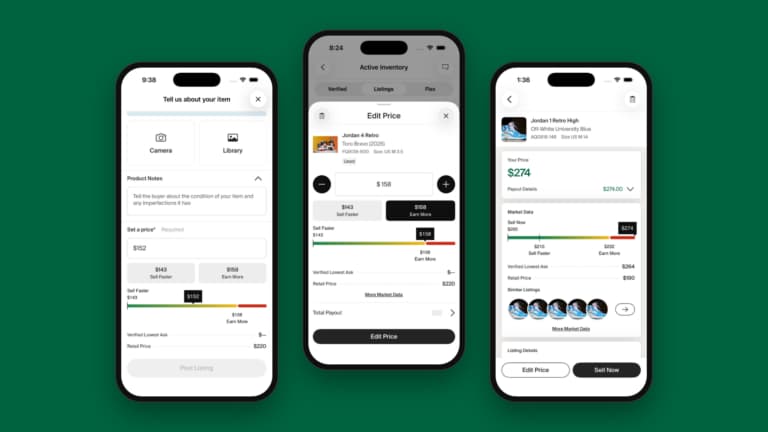



After listing a product, you can view the Market Data by clicking on the listing’s product name to bring up the Market Data panel.
From there, you can view the sales history for that product and size, as well as all active Bids and Asks:
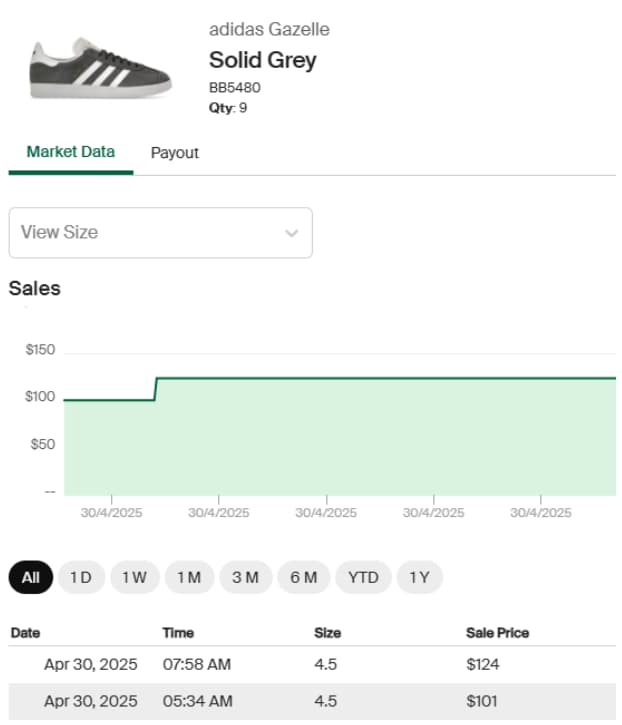
The sales graph can be filtered by date. Sales with a rocket icon are Flex sales. For more information about Flex, visit our website. For our Getting Started With Flex guide, visit our blog.
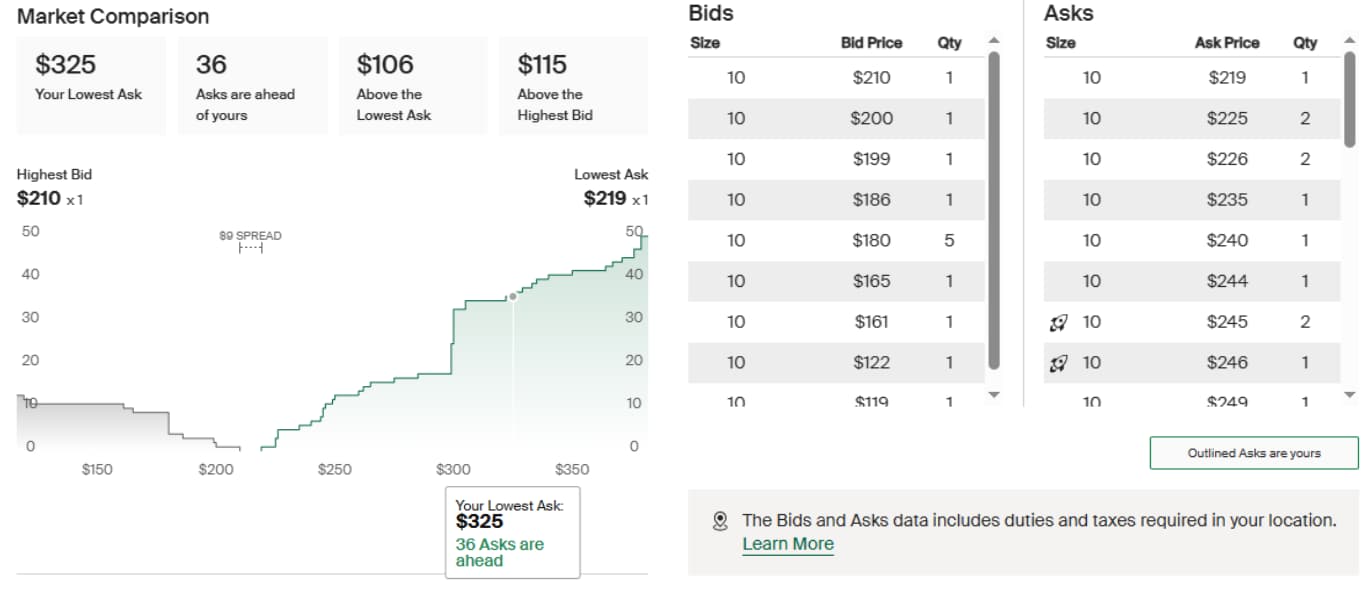
The Market Comparison shows you the current spread of Bids and Asks, including your Ask and what you need to price your product at to become the lowest Ask. You can also see the individual Bids and Asks for your product, including how many Bids or Asks are placed at each price. The rocket icon next to an Ask indicates a Flex Ask.
Next, we will take a look at the views and filters available to help manage your listings.