

Running a live show means doing a lot at once: showing products, starting auctions, managing listings and keeping up with chat. Now you can split that work across two devices.
With the new Host and Co-Host options, you can broadcast from one device and run the show from another, all without interrupting your stream.
How it works
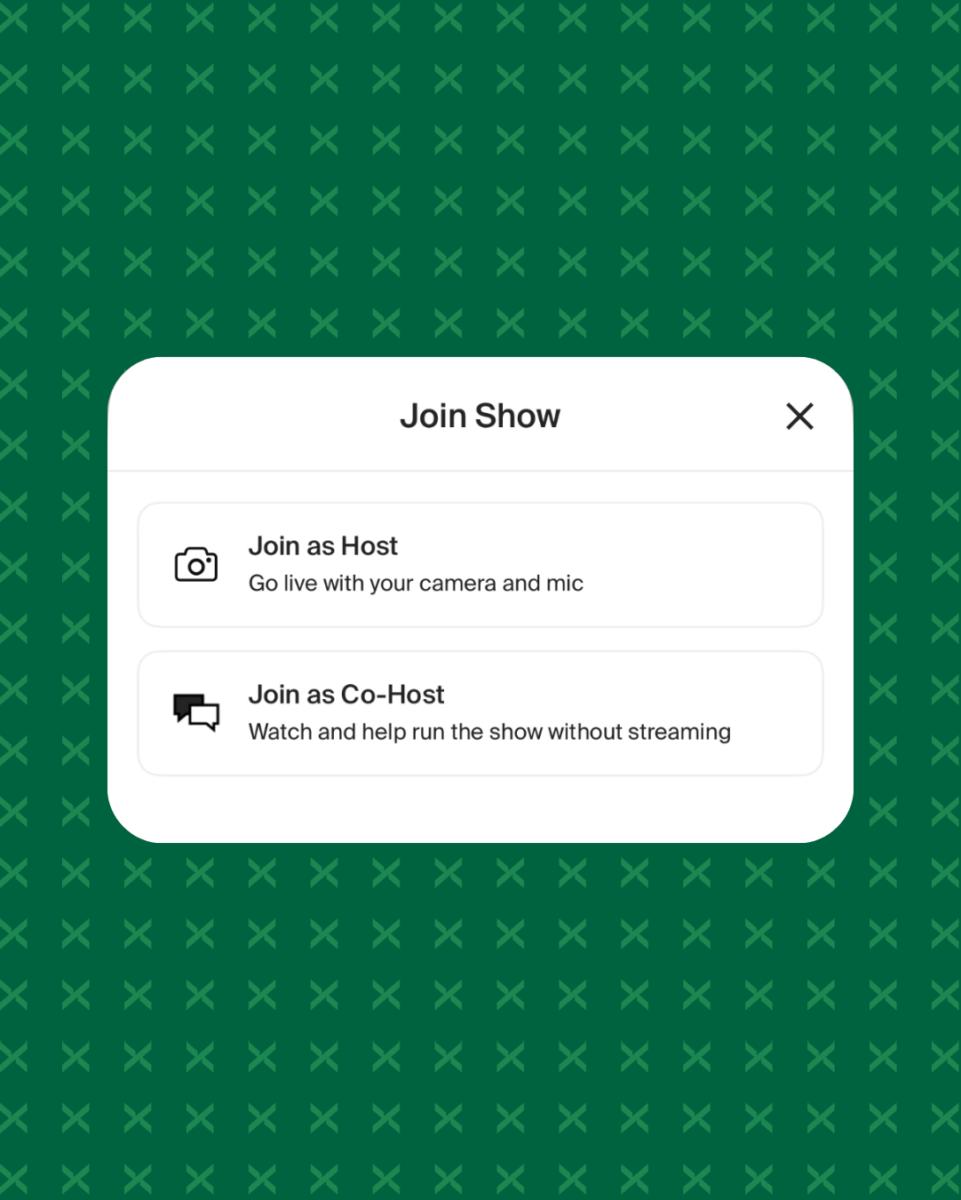
When you open your live show on a second device and tap Join Show, you choose how that device joins:
Join as Host: Move the broadcast to this device. It takes over the camera and microphone, and your original device automatically switches to watching the stream. Only one device broadcasts at a time.
Join as Co-Host: Control the show without turning on this device’s camera or microphone. As a co-host, you can watch the live video, start auctions, move to the next item, manage listings and chat, with full access to show management controls.
Why use it
Set up Device A to focus on your products while Device B handles the show. Start auctions, line up the next item and respond to buyers without reaching for the device that’s filming. Need a better camera angle mid-show? Join as host from another device and the broadcast moves with you.
Get started
- Start a live show on your main device.
- Sign in to the same seller account on a second device.
- Open the show that’s currently live and tap Join Show.
- Choose Join as Host or Join as Co-Host.
Host and Co-Host is available now in the StockX app on iOS for select US sellers. If you’re interested in selling on StockX Live, join the waitlist.