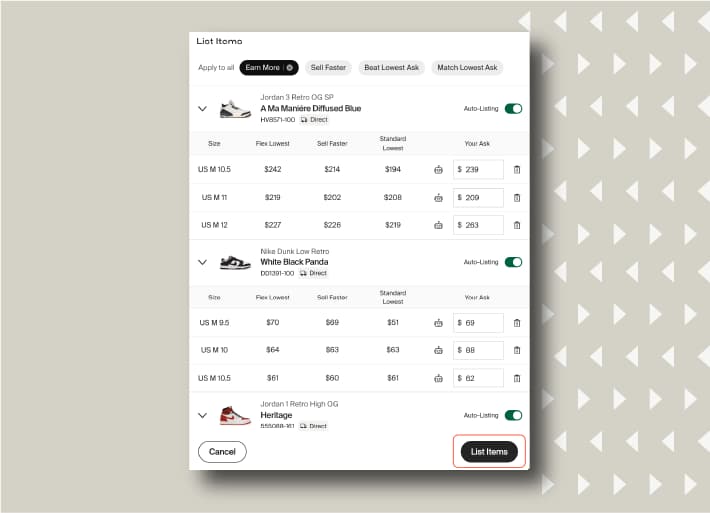



When you have decided which products you want to send to Flex storage, you can add them to a delivery and send them to StockX for processing and verification.
Flex Delivery Steps:
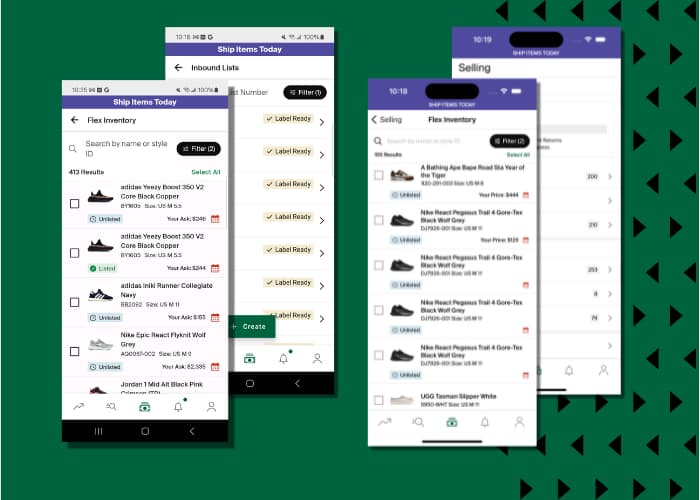
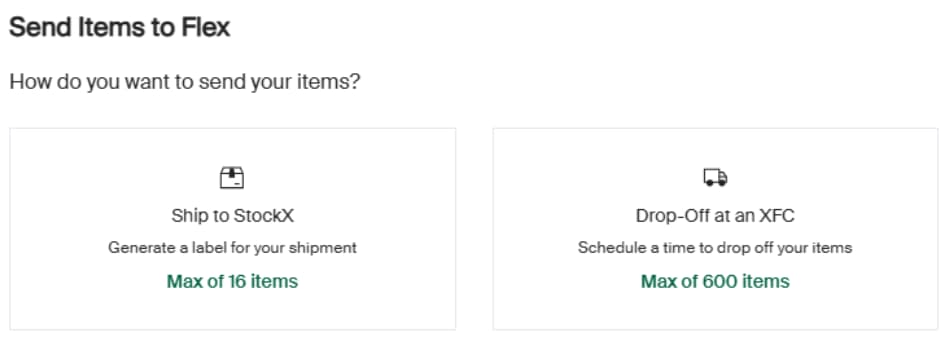
- In StockX Pro, go to the left-hand sidebar, select Flex and navigate to Inventory, then Send Items to Flex. NB: Selected sellers have the option to drop off items at a Verification Centre, based on their level and location.
- Click on the search area to see a suggested list of products. You can also search for your products in the search bar. For more information on which products are eligible for Flex, please visit our Help Centre. NB: Not all products are eligible for Flex storage. Only products with the green “Flex Eligible” badge can be sold on Flex.
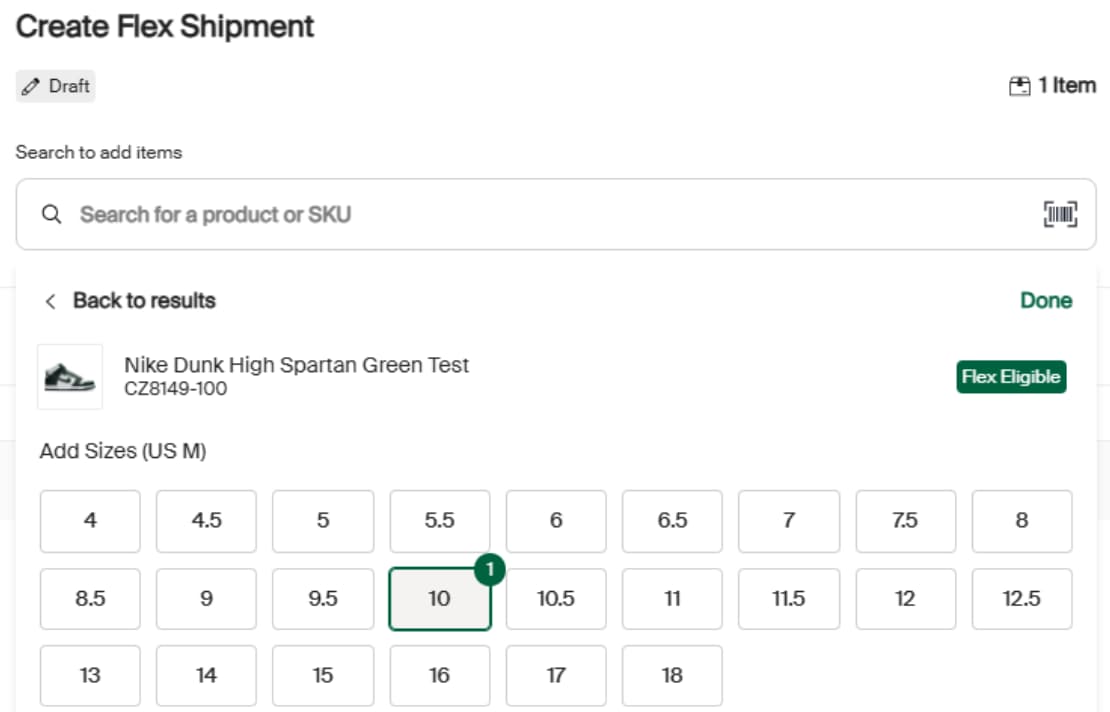
- After selecting all the products you want to send, click the “Finalise and Create” button and confirm your delivery details.
- Print your postage label.
- Pack the products securely.
- Drop off the package at the carrier location.
Next, we’ll cover managing your listings once they’ve been shipped.