

If you would like your products returned from Flex, you can start the process in StockX Pro.
Flex Return Steps:
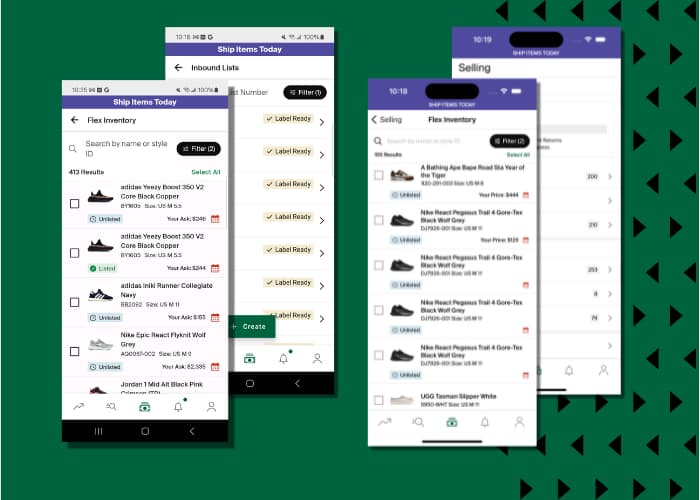
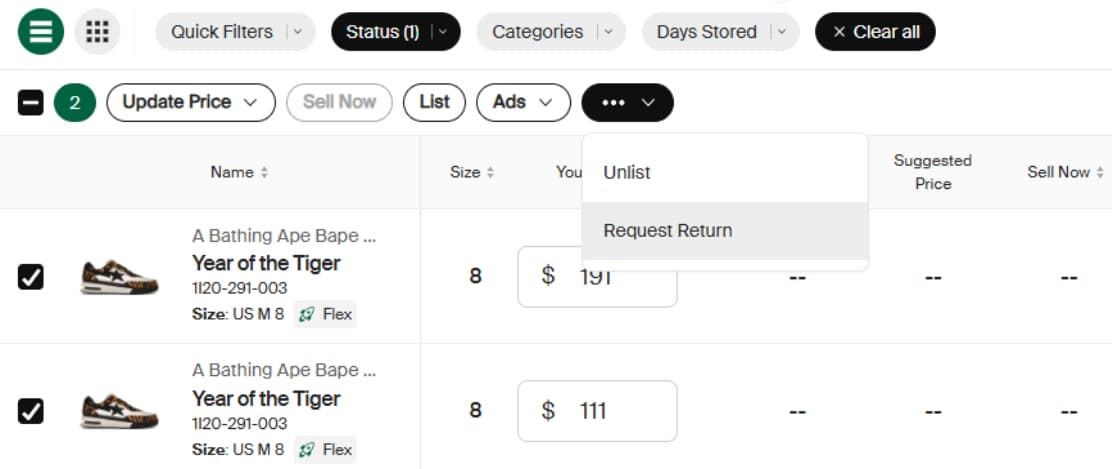
- Go to Flex > Inventory Unlisted or Listed.
- Select the product(s) you want to be returned from Flex.
- Click the ellipsis (…), then select the Request Return button.
- Read the charges, which include return fees, and confirm the request.
- The product(s) will be sent back to you.
What Happens Next:
- The product(s) are immediately unlisted from StockX.
- The product(s) will be sent back to you.
- You will receive a tracking number once the product/s has/have been dispatched.
- To see the products being returned to you, go to the Flex > Inventory page and filter by the Returns status.
- Please note that only products with the Unlisted or Listed status can be returned.
Next, we’ll cover where to get further help with Flex.