


Once you have determined which products you would like to send into Flex storage, you can add them to a shipment and send them to StockX for processing and verification.
Flex Shipping Steps:
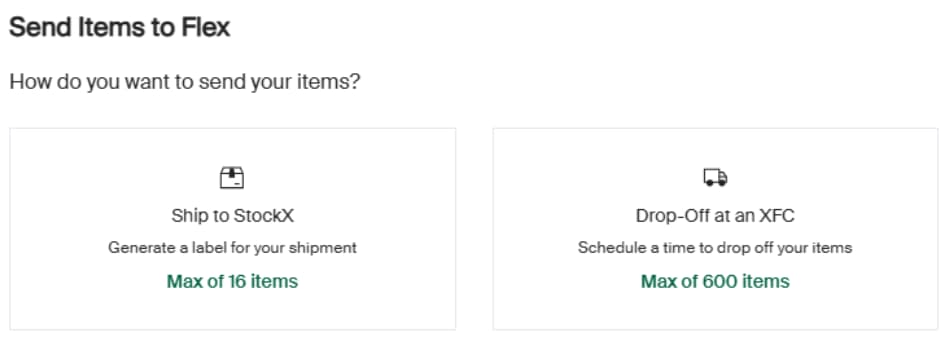
- In StockX Pro, go to the left-hand sidebar, select Flex, and navigate to Inventory, then Send Items to Flex. Note: select sellers have the option to drop off at our Verification Centers, based on level and location.
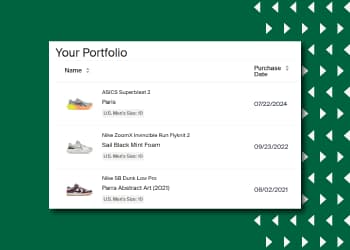
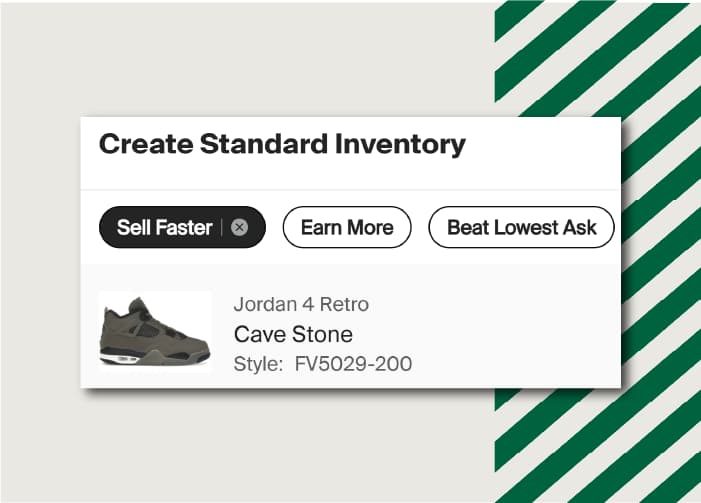
- Click on the search area to see a suggested list of products. You can also search for your products in the search bar. For more information on which products are eligible for Flex, please visit our Help Center. Note: not all products are eligible for Flex storage. Only products with the green “Flex Eligible” badge can sold on Flex.
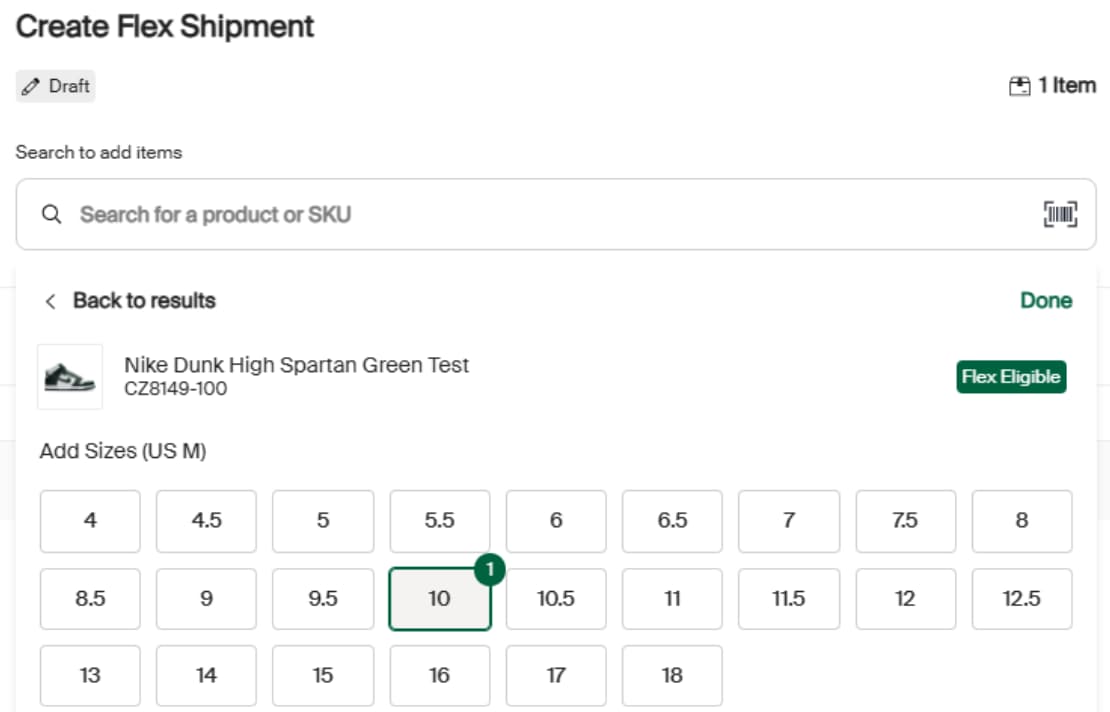
- After selecting all the products you’d like to send, select the “Finalize and Create” button, and confirm your shipment details.
- Print your shipping label.
- Pack the products securely.
- Drop off the package at the carrier location.
Next, we’ll cover managing your listings once they’ve been shipped.