


After shipping your products to Flex, you can check the status and manage the products once they’ve been verified.
Managing Flex Listings:
- Your shipped products will appear under the Draft status in the Flex > Inventory section of StockX Pro if they have not been shipped yet. Once shipped, the products will move to “Shipped” then “Delivered” and finally to “Verifying” before being listed.
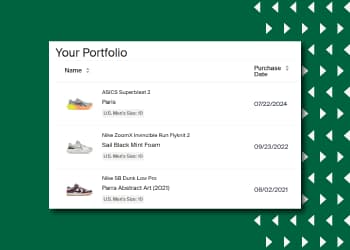
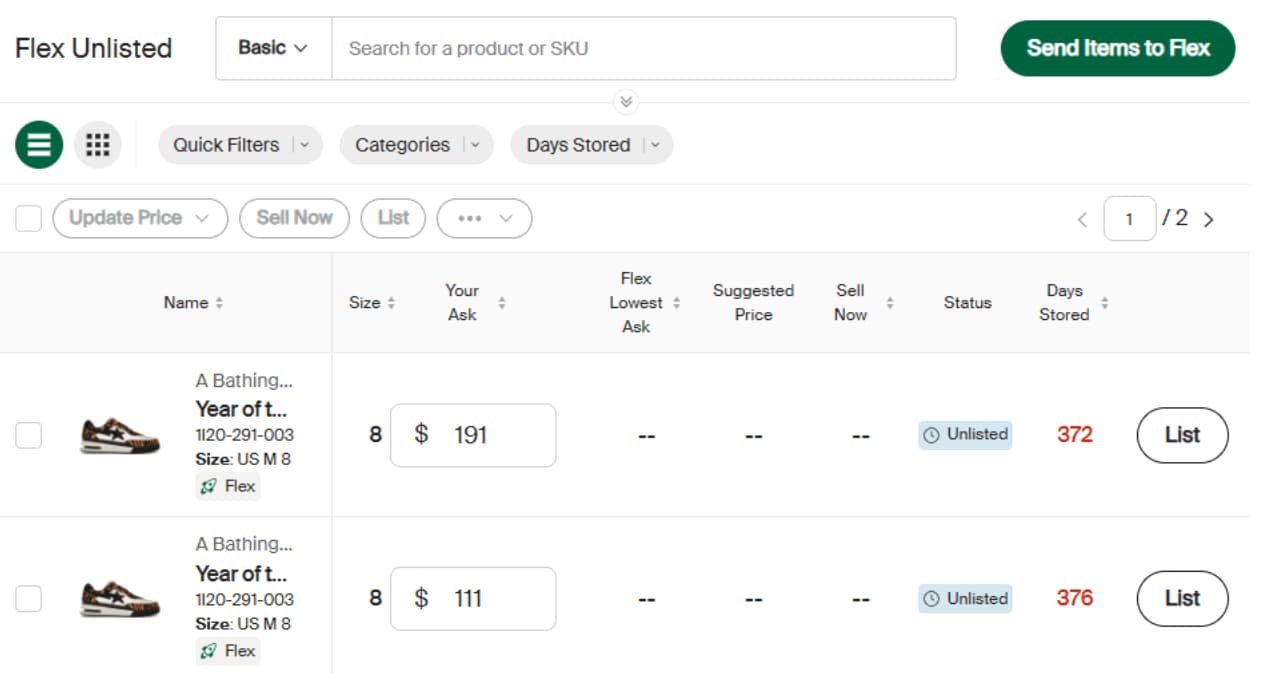
- After the product or products have been verified and put into Flex storage, they will move to the Unlisted tab of StockX Pro. Go to Flex > Inventory or Unlisted to see these products.
- If a product fails verification, we will return the product to the shipping address listed on the Seller’s StockX account. For more information, visit our Help Center article: What does the verification process entail for Sellers?
- After your products are in the Unlisted section, you can set a price using the text field under the Your Ask column.
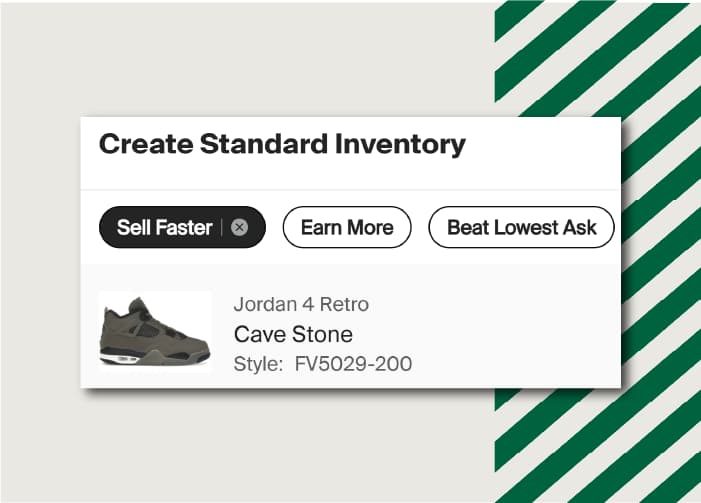
- To better price your products, you can use the StockX Pro bulk pricing tools below. For more information on how these tools work, visit our StockX Pro guide for creating listings.
- Beat Lowest Ask
- Suggested Price (US)
- Sell Faster / Earn More (INTL)
- Click Save & List, and the products will be live for our millions of buyers around the world.
Additional Tips:
- You can “Sell Now” at any time on Flex.
- Flex statuses to know:
- Listed: Live on the StockX marketplace.
- Unlisted: Not yet for sale, but can be sold once you list the product.
- Verifying: Waiting to be verified and put into Flex Storage.
Next, we’ll cover Flex payouts & fees.