

Welcome to StockX Pro, the best tool for selling on StockX. This tool combines robust features with efficiency to help sellers manage their business.
In this series, we’ll cover what you need to know to get started on Pro, including creating your first listing, viewing market data, updating your listings, managing your orders, and more. Begin by visiting StockX Pro and logging in using your StockX credentials.
- To list a product, click the green “List Items” button in the upper right corner of the screen.
- Select a product from the “Recently Viewed” Or “Most Popular” products, or search for your product in the search bar using the product name or style ID. The style ID is used to identify a specific product, and can be found on the box label or tag attached to the product, depending on the product type. Please note that not all products have a style ID.
- Select the size or multiple sizes. If you have more than one of those products, you can update the “Quantity” field. To update your Ask, you can enter the amount you’d like to sell the product for in the “Your Ask” field.
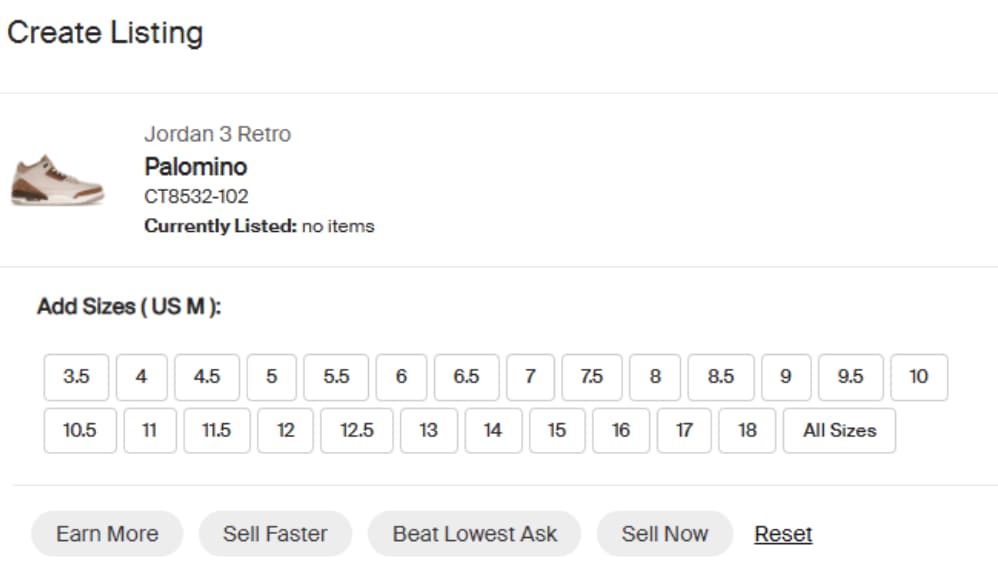
- You can also see the current lowest Ask from another seller, the highest Bid from a buyer, and your per-product payout based on the amount you entered in the “Your Ask” field.
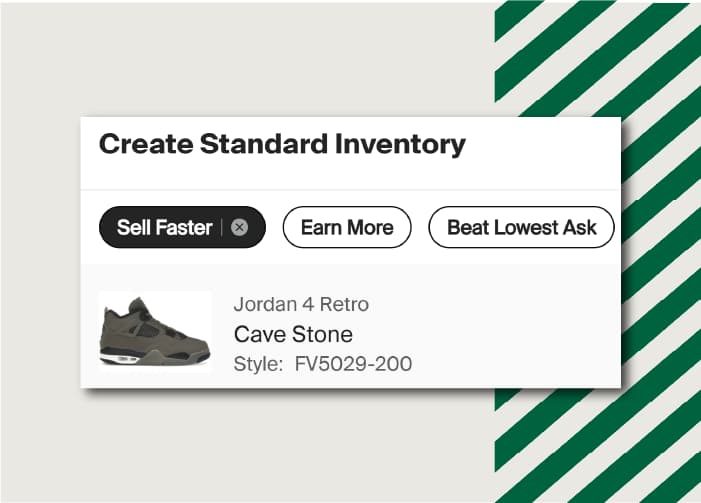
- You can also utilize our real-time pricing tools to list your products by selecting one of the three buttons above your listings:
- Beat Lowest Ask: Your listing or listings will be priced as the lowest Ask. For example, if the lowest ask is $230, selecting Beat Lowest Ask will list your product $1 lower at $229.
- Match Lowest Ask: Your listing or listings will be priced the same as the lowest Ask. If a buyer chooses to “Buy Now” at that price, the seller who listed the product at that price first will sell their product.
- Sell Now: Your listing or listings will immediately match the highest Bid, resulting in a sale upon listing. Be sure to double-check the payout section to understand how much you would earn for the sale of your product or products.
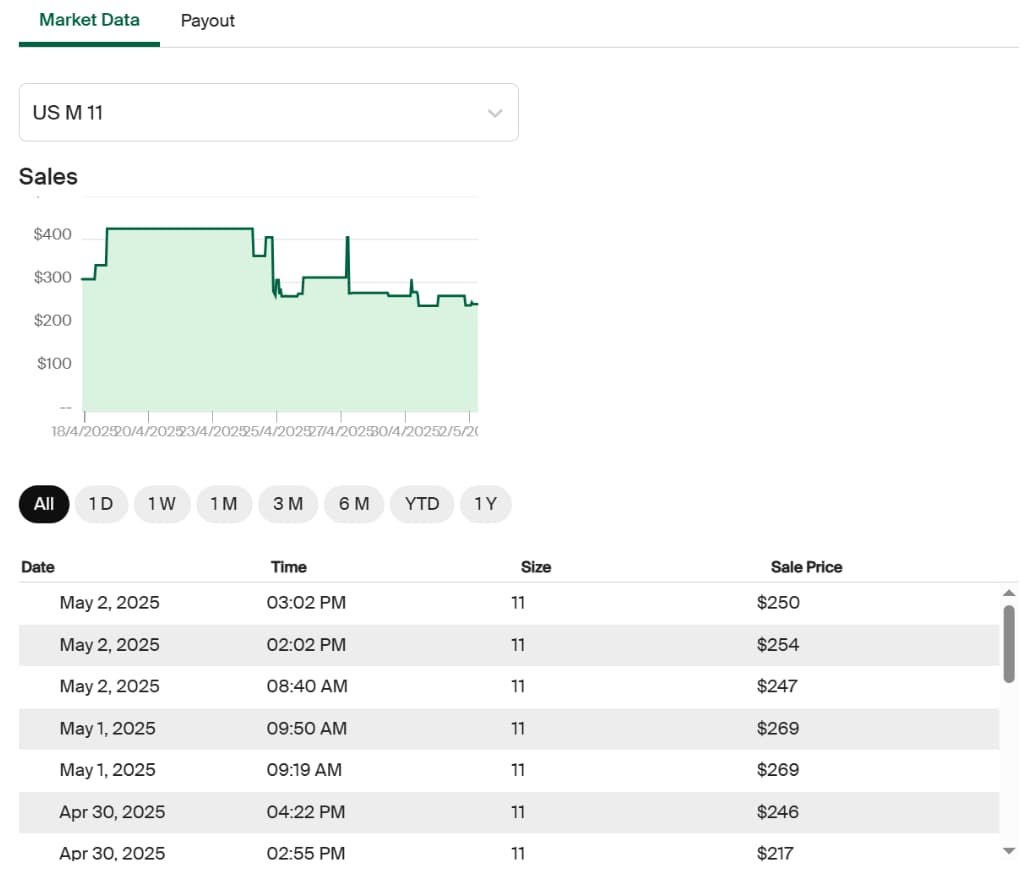
- The Market Data section displays recent sales for your product, along with current Bids and Asks, which include applicable duties and taxes based on your location. For more information on how StockX calculates duties and taxes, please visit our Help Center article: How are the import duties, sales tax, and Buyer processing fees calculated?
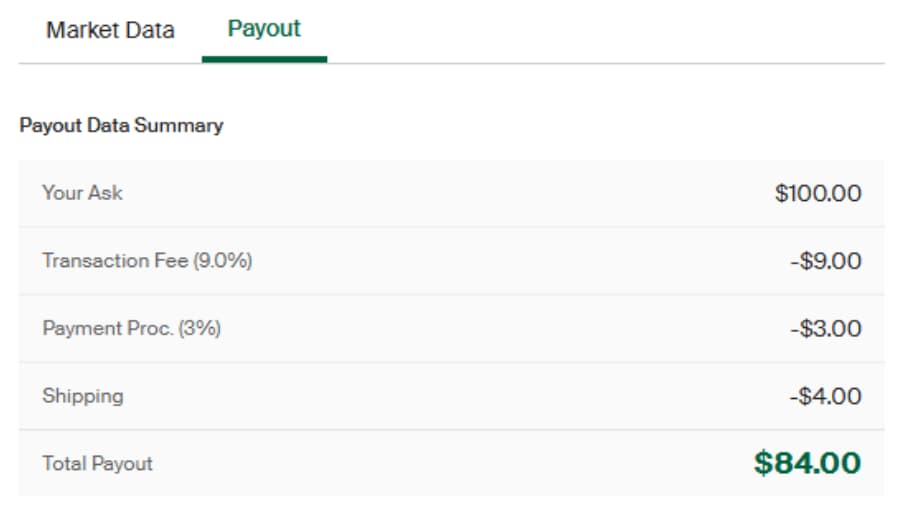
- Next to the Market Data tab, you can select the Payout tab to see a breakdown of your potential payout for the selected size, in the event it sells at your listing price.
- Once you are done pricing your products, select the Finish button at the bottom of the page, and your listings will be created. Hit the X in the upper right corner to go to the Listings page to see your products.
Next, we’ll dive deeper into how to view and use market data on StockX Pro.